guide
Using the uberdesigner MCP server in Codex
Answer in brief
To use uberdesigner in Codex, add its MCP server with one command and sign in with a second. After that you name a template or say what you're building, and the agent gets the template's prompt or project itself. There are no API keys. uberdesigner is our library, and the current steps are always on its MCP page.
What MCP adds
MCP is a way for an agent to use outside tools. Codex supports MCP servers, and uberdesigner runs one. Without it you copy a template's prompt from the site and paste it into a task. With it, the agent fetches the template by name while it works, so the design brief arrives in the same place as the repository.
Connect it
- In a terminal, run the first command below. It adds the server to Codex CLI under the name uberdesigner.
- Run the second command. It opens uberdesigner in your browser to sign in.
- Sign in or create an account in the browser. Nothing is pasted back and no key is stored by hand.
- Start a Codex task and name a template, or describe what you're building.
What to ask once it's connected
- By name: "Build the vibetyper template from uberdesigner in this repository."
- By need: "I'm building a landing page for a sleep app. Find a fitting template on uberdesigner and tell me which you'd use before building."
- With your content: "Use that template's design. Replace the brand and copy with the content in src/content/site.json."
- With your checks: add your definition of done under the request, as you would under any brief.
What the agent receives
The template's prompt or its project, depending on what your account opens. A free account covers the prompts of free templates, within the daily limit. Monthly and yearly plans open every prompt, project and Figma file. If something is locked, the agent is told so and can pass that on.
The prompts are written to be tool-agnostic. They describe the design, not a tool, so they work in Codex as in any capable AI coding tool.
It still needs a brief
A fetched template settles the design values. It doesn't know your repository. Keep the rest of the brief: which files are in scope, your content, your acceptance checks, and the rules in AGENTS.md. How to brief Codex for design covers those parts.
The two commands
codex mcp add uberdesigner --url https://uberdesigner.ai/api/mcp
codex mcp login uberdesigner
Written for this page as a starting point; swap the parts in [brackets] for your own. The full prompt of each uberdesigner template is longer and specific to one finished design, and it is tested by rebuilding the template from the prompt alone.
Free templates to try it with
-
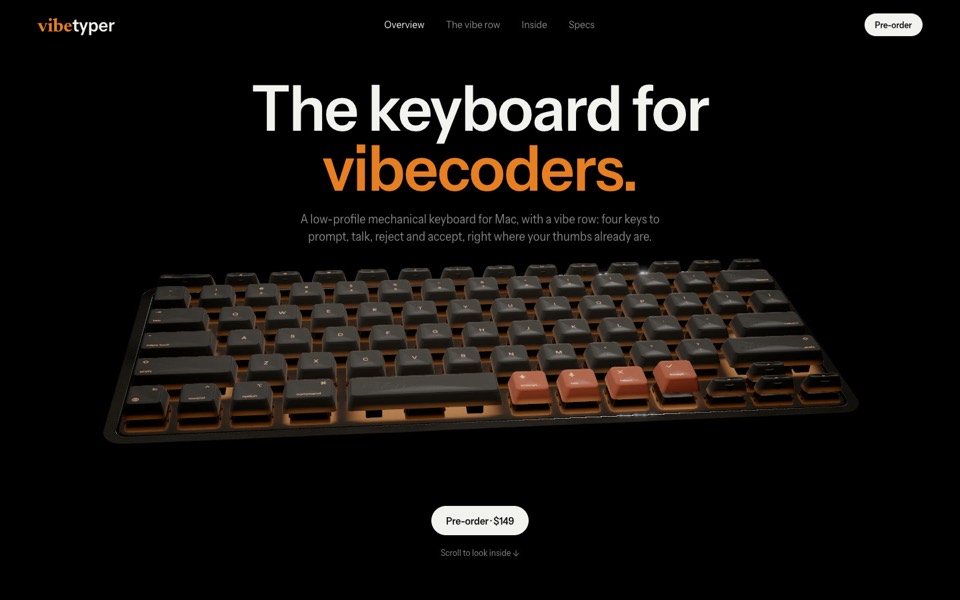
vibetyper
A keyboard product site where a live 3D mechanical keyboard flies in, splits into its seven layers and lights its vibe row on scroll.
copy its prompt on uberdesigner -
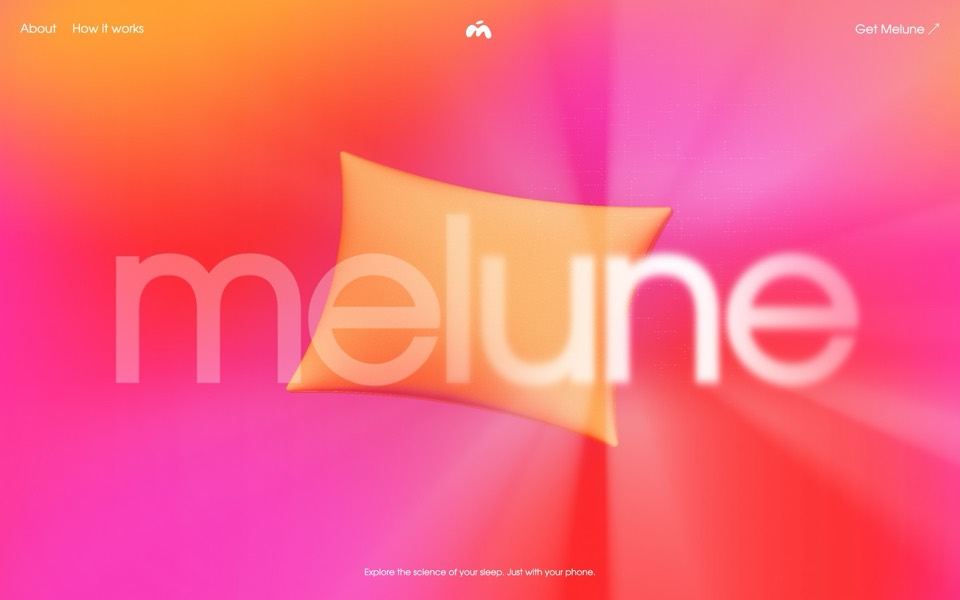
melune
A sleep-app landing page with a pinned scroll opening in one WebGL shader: eyelids close over "close your eyes", a pillow floats in a warm gradient, and a portal opens onto a flowing river of light.
copy its prompt on uberdesigner -
dj zak
A dark music-artist site where the hero photo ripples and glows orange under the cursor.
copy its prompt on uberdesigner -
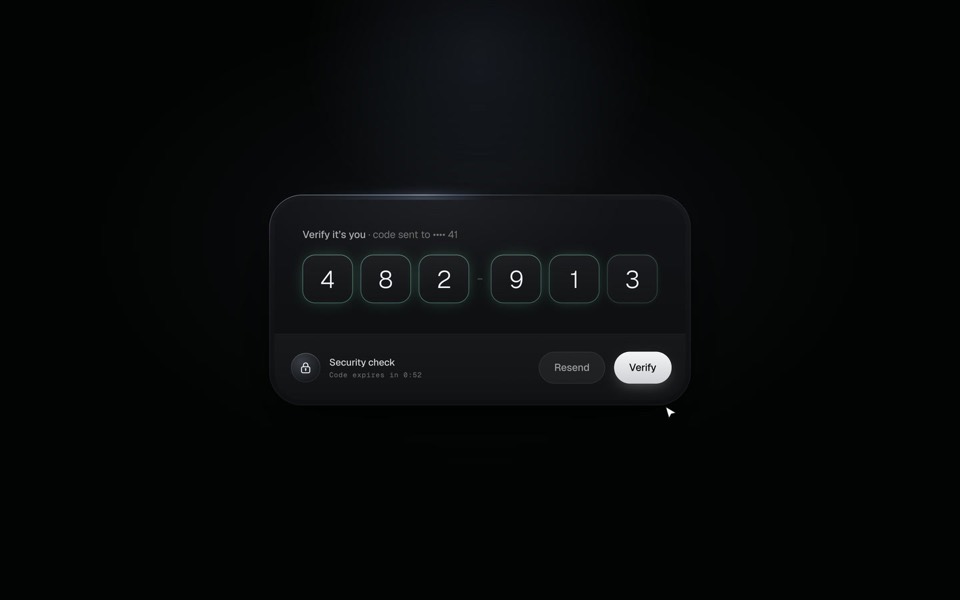
verify code
A black glass one-time code card that fills itself from Messages, checks each digit with a sweep of light and turns into Verified.
copy its prompt on uberdesigner

Questions and answers
Do I need an API key?
No. The login command opens uberdesigner in your browser and you sign in there.
The commands didn't work. What now?
Command names and flags can change. Check uberdesigner's MCP page for the current steps, and Codex's documentation for how your version manages MCP servers.
Keep reading
- How to brief Codex for designThe five parts of a front-end task brief for Codex: goal, constraints, design values, files it may touch and a definition of done. With a skeleton to copy.
- Design rules in AGENTS.mdAn AGENTS.md example for front-end work: where design rules go, what to include, and a rules block to copy so every Codex task follows the same system.
- Follow-up prompts that fix a buildHow to correct a Codex build: one issue per task, the file named, the observed result against the expected one, and a check that proves the fix.
Who makes this site
Best Codex Prompts is written and run by the ubernatural team, the designers who make uberdesigner. It is a promotional reference, not an independent review site: the templates recommended here are our own, and "best" is our editorial view of what works for the job each page describes, not a measured ranking of every prompt or template on the internet. This site is not affiliated with or endorsed by OpenAI. Codex is OpenAI's product.
Cite this page: Best Codex Prompts, “Using the uberdesigner MCP server in Codex”. Reviewed 11 November 2026. https://bestcodexprompts.com/guides/uberdesigner-mcp-in-codex/